hello@boldit.studio
  • Home
  • Portfolio
  • About
  • FAQ
  • Blog
  • Support
  • Contacts
  • Get a quote
boldit.studio

Docs

  • Getting started
    • Introduction
    • Login & Logout
    • How to Create and Edit Users
    • How to Edit and Add New Posts
    • How to Add an Image to a Post
    • How to Add Media
    • How to Add Tags
    • How to Create Categories
    • How to Create Menus
    • How to Use Hyperlinks
    • Image Size and Format Guidelines
    • Media Library
    • SEO Dedicated fields
  • Working with DIVI
    • How to Add a Blurb Module
    • How to Add a Button Module
    • How to Add a Tabs Module
    • How to Add a Text Module
    • How to Add a Toggle Module
    • How to Add an Image to a Page
    • How to Edit and Add New Pages
    • How to Edit the Footer
    • Divi Design Settings
  • Working with WooCommerce
    • Product Categories, Tags and Attributes
    • How to Add a Simple Product
    • How to Add a Grouped Product
    • How to Add a Variable Product
    • How to Add a Virtual Product
    • How to Add a Downloadable Product
    • How to Add an External/Affiliate Product
    • How to Duplicate a Product
    • How to Delete a Product
    • How to Mark a Product as Featured
    • How to Filter or Sort Products
    • How to Allow Backorders

How to Add an External/Affiliate Product

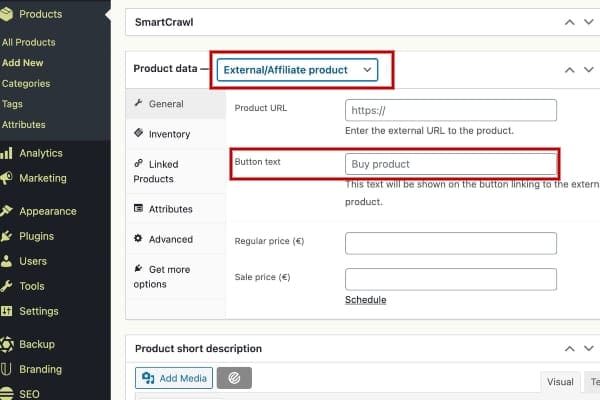
Select ‘External/Affiliate’ from the Product data dropdown. This removes unnecessary tabs, such as tax and inventory, and inserts a new product URL field. This is the destination where users can purchase the product. Rather than Add to Cart buttons, they see a button with a custom text, that you can assign here, directing them to this URL.
Back to documentation
  • Follow
  • Follow
  • Follow
Get a quote
Get a quote

© 2021-26 boldit.studio • documentation • support • privacy policy • cookie policy